ARS API for Mendix
The screens to build in Mendix, which endpoint feeds each part, working reference screens and a mock API.
Scope
Seven screens around the purchase order, plus a store picker and a data banner. All calculation happens in ARS; Mendix shows the data, captures the planner's changes and approvals, and handles log-in and roles.
The reference screens are a working version of these screens, built only on the endpoints below. Use them to see the behaviour (what a click does, which call it makes); the visual design is free to follow the client's Mendix style.
| # | Screen | Endpoints | Build effort |
|---|---|---|---|
| S1 | Purchase orders (home) | GET /v1/stores GET /v1/data-status GET /v1/tasks GET /v1/alerts POST /v1/orders/{id}/approve · /reopen POST /v1/assistant/chat | Medium |
| S2 | Emergency orders | GET /v1/alerts | Low |
| S3 | Purchase order detail | GET /v1/orders/{id} PUT /v1/orders/{id}/lines/{art} POST /v1/orders/{id}/approve · /reopen POST /v1/orders/{id}/reset | High |
| S3d | Promotion details | GET /v1/orders/{id} | Low |
| S3b | Purchase order below the minimum order | GET /v1/orders/{id} PUT /v1/orders/{id}/lines/{art} | Low |
| S3c | Ordering in full packs (uom) | GET /v1/orders/{id} PUT /v1/orders/{id}/lines/{art} | Low |
| S4 | Purchase order detail: calculation view | GET /v1/orders/{id} | Low |
| S5 | Article panel | GET /v1/articles/{store}/{art} | High (Medium without the chart) |
| S8 | Calendar | GET /v1/calendar | Medium |
| S11 | ARS Assistant | POST /v1/assistant/chat | Medium |
Later (not in this API): Vendors, Vendor detail, Insights (5 tabs), Business results (KPI), Daily briefing, the month-grid calendar and the full article chart.
Endpoints
- GET /v1/stores
- GET /v1/data-status
- GET /v1/tasks
- GET /v1/alerts
- GET /v1/orders/{id}
- PUT /v1/orders/{id}/lines/{art}
- POST /v1/orders/{id}/approve · /reopen
- POST /v1/orders/{id}/reset
- GET /v1/articles/{store}/{art}
- GET /v1/calendar
- POST /v1/assistant/chat
Using the mock
Base URL /v1. Try every call in Swagger; the details below are there when you need them.
Basics: format, headers, errors, ids
- JSON over HTTPS. Dates
YYYY-MM-DD, money in rupiah, quantities in pieces. - Headers:
X-User(the signed-in Mendix user, for the audit log) andX-API-Keywhen the server asks for one. - Errors: HTTP status +
{"code", "message"}. 404 unknown id, 400 invalid input, 409 not allowed in the current status (e.g. editing an approved PO). - Order ids such as
PO-XY49-13982-B-20260924are the ARS reference of a PO: take them from the task list and treat them as opaque. - Leave
dateout: the API answers for today. In production that is the real date.
Test data: what the mock contains
- A snapshot of the proof of concept on the client's data: stores
XY49,XY62,XY63, their vendors, articles and the order of2026-09-24(today in the mock). The mock computes nothing. - Included: one PO per vendor + variant, emergency orders, lines flagged Check, promotions, POs below the minimum order, articles with packs of 6 or 12, a new article without sales history (OVALTINE, PO-XY49-13982-B), the Formula next to every AI order, and store XY63 with late data (banner).
- To fill one day, some liberties: the emergency orders of 25 Sep are shown as today's (and those vendors' regular POs move to their next order day), and XY63's data is shown as late.
- Calendar months with AI tips:
2026-12to2027-03. - Changes are kept until
POST /v1/mock/resetor a server restart. The assistant returns a fixed example answer.
API key
Run locally, the mock needs no key. When it is hosted for the Mendix team, the server sets ARS_API_KEY and the key is shared with the team separately;
in Swagger click Authorize and paste it, in Mendix send it as the X-API-Key header. The reference screens ask for it once.
A full flow in five calls
curl "$BASE/tasks?store=XY49"                                             # S1: pick a task id
curl "$BASE/orders/PO-XY49-13982-B-20260924"                                 # S3: header and lines
curl -X PUT "$BASE/orders/PO-XY49-13982-B-20260924/lines/37350384" \
     -H "Content-Type: application/json" -H "X-User: planner.xy49" -d '{"qty": 10}'   # change a quantity
curl -X POST "$BASE/orders/PO-XY49-13982-B-20260924/approve" -H "X-User: planner.xy49"  # approve
curl -X POST "$BASE/mock/reset"                                            # start again
Screens
Each area is numbered in the colour of the endpoint that supplies it. Click an endpoint to open it in Swagger; click a screenshot to enlarge it.
S1Purchase orders (home) Medium Open the screen ↗
The planner's to-do list for one store and day: regular POs overdue, due today and coming up, their value and what needs attention. Emergency orders have their own tab (S2), so planners finish the regular orders first. Open a PO, or select several (or all) POs and approve them in one go (one approve call per PO). Put the data banner (GET /v1/data-status) at the top when a store's status is not ok.
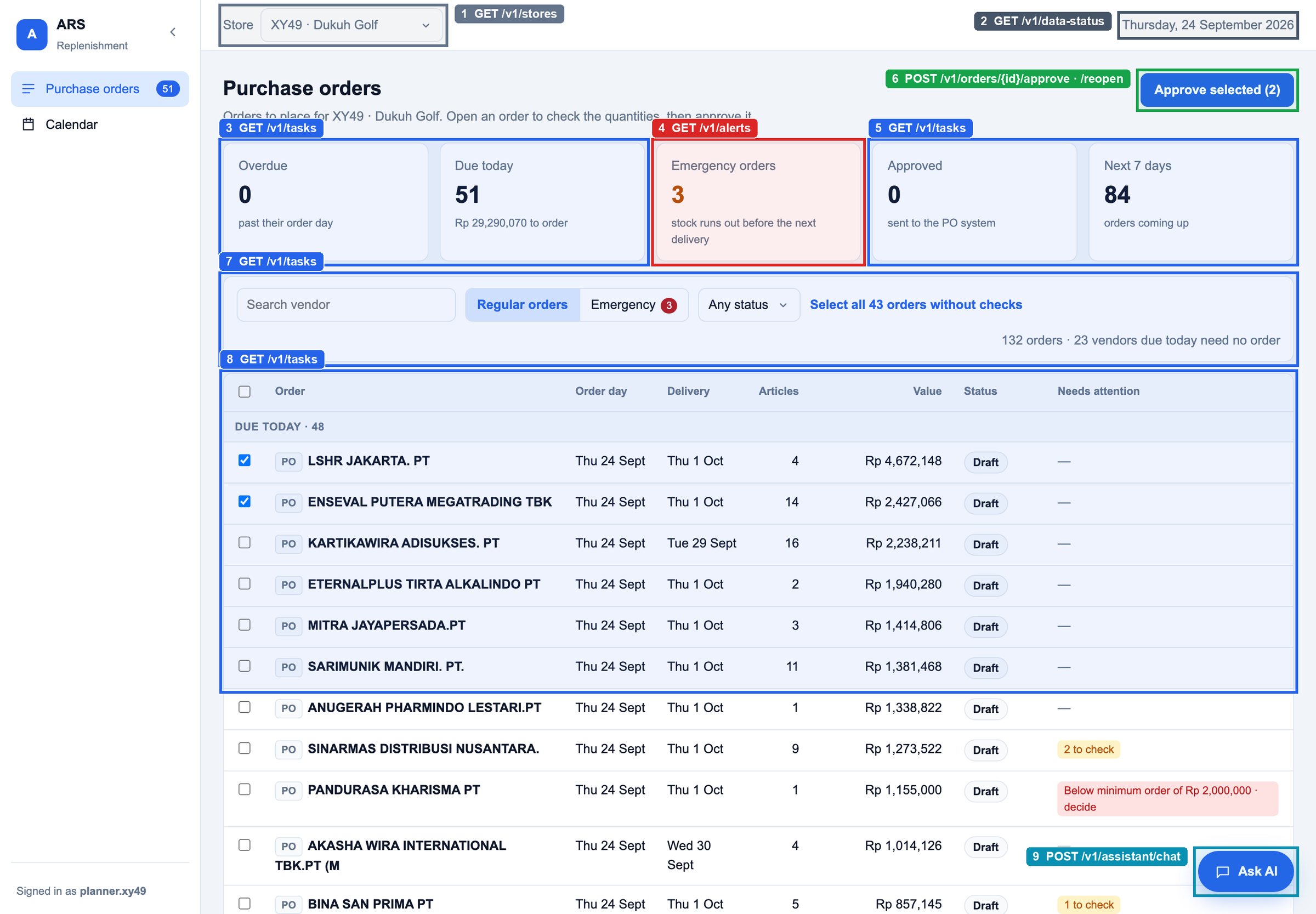
| # | Endpoint · what this area shows |
|---|---|
| 1 | GET /v1/stores Store picker: the stores this user may see |
| 2 | GET /v1/data-status Today's date comes from the data status; a banner appears under the bar when a store's data is late (see S2) |
| 3 | GET /v1/tasks summary: overdue POs; POs due today and their value |
| 4 | GET /v1/alerts Emergency orders today (also in tasks summary.emergency) |
| 5 | GET /v1/tasks summary: approved; POs in the next 7 days |
| 6 | POST /v1/orders/{id}/approve · /reopen Bulk approve: one approve call per selected PO |
| 7 | GET /v1/tasks Search by vendor, type (PO / EM), status: filter the tasks list in the screen, or use the type and status parameters |
| 8 | GET /v1/tasks tasks[]: grouped by group; vendor, order and delivery day, articles, value, checks / moq_note, status. Row → S3 with id (one row per vendor + variant) |
| 9 | POST /v1/assistant/chat Floating Ask AI button on every screen: opens the assistant panel (S11) |
S2Emergency orders Low Open the screen ↗
A tab on S1 (GET /v1/tasks?type=EM, or GET /v1/alerts). An emergency order is an extra order outside the vendor's schedule: ARS predicts the article runs out before the delivery from the vendor's next order day arrives, and ordering today brings stock in sooner (only when today is not the vendor's order day, and the sales it saves are worth at least Rp 50,000). It opens like any PO (S3). Shown for store XY63, which also shows the late-data banner.
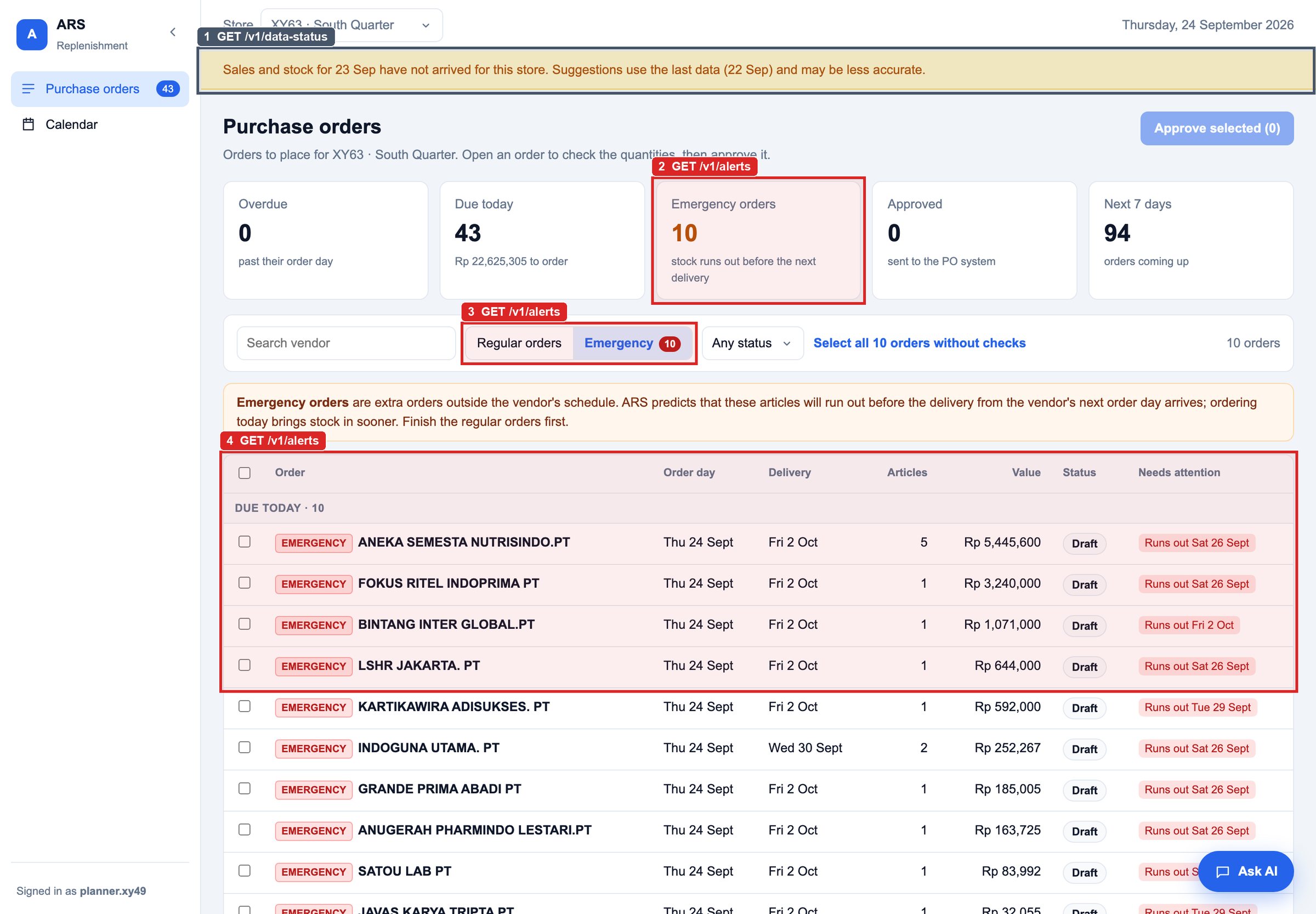
| # | Endpoint · what this area shows |
|---|---|
| 1 | GET /v1/data-status Data banner: shown when the store's status is not ok, with its message (here store XY63, data one day late) |
| 2 | GET /v1/alerts count of emergency orders |
| 3 | GET /v1/alerts Emergency filter: GET /v1/alerts, or GET /v1/tasks?type=EM |
| 4 | GET /v1/alerts alerts[]: vendor, articles, value, runs_out, sales_at_risk, delivery_date, status. Opens like any PO (S3) |
S3Purchase order detail High Open the screen ↗
Header and lines of one PO (one PO per store + vendor + variant: a vendor with three variants has three POs, A, B, C). Regular articles come first, articles on promotion follow in their own section. The planner sees the AI suggestion next to the client's Formula and the reason per article, changes quantities and approves. The AI quantity is never overwritten: a change is stored as planner_qty next to it. Add an 'Undo my changes' button (POST /v1/orders/{id}/reset) when header.lines_edited > 0. A new article without sales history has no AI quantity (ai_qty null, no_suggestion = new_article): flag it and let the planner enter one.
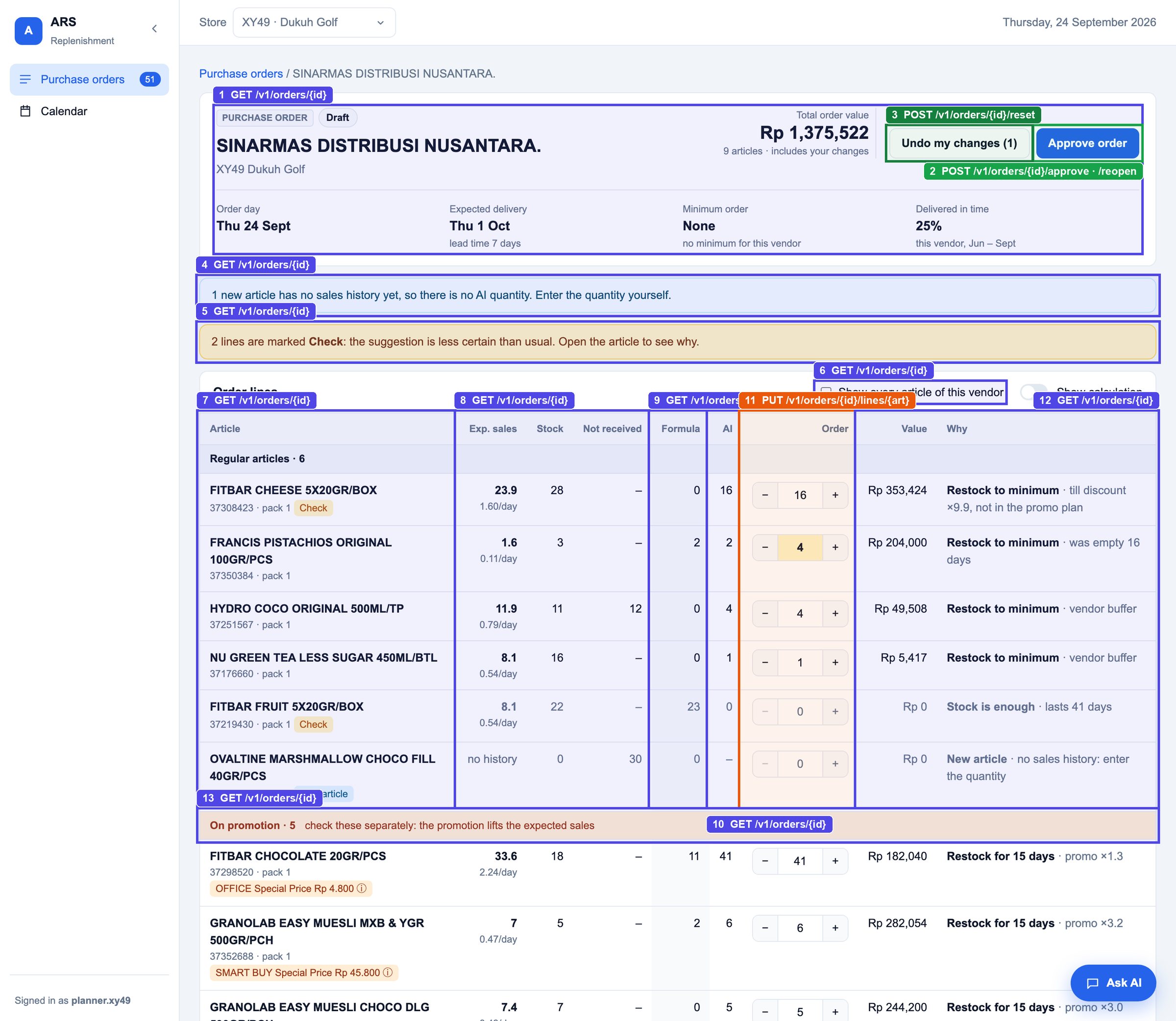
| # | Endpoint · what this area shows |
|---|---|
| 1 | GET /v1/orders/{id} header: vendor, store, status, order and delivery day, lead time, moq (current of value), vendor_in_time_rate. One PO per vendor + variant |
| 2 | POST /v1/orders/{id}/approve · /reopen Approve (draft → approved); Reopen when approved |
| 3 | POST /v1/orders/{id}/reset Undo my changes: shown when header.lines_edited > 0 |
| 4 | GET /v1/orders/{id} header.lines_without_suggestion: new articles without sales history (no AI quantity) |
| 5 | GET /v1/orders/{id} header.lines_to_check: lines flagged Check |
| 6 | GET /v1/orders/{id} Show every article: all_articles=true |
| 7 | GET /v1/orders/{id} lines[]: description, article, pack_size, promo and Check badges. Click → S5 |
| 8 | GET /v1/orders/{id} expected_sales and sales_per_day, stock, on_order |
| 9 | GET /v1/orders/{id} manual.qty (Formula): the client's sheet formula for the same line |
| 10 | GET /v1/orders/{id} ai_qty (AI): the ARS suggestion, never changes |
| 11 | PUT /v1/orders/{id}/lines/{art} qty with − / +: each change is saved; planner_qty highlights an edit |
| 12 | GET /v1/orders/{id} value; reason_short (headline · note) |
| 13 | GET /v1/orders/{id} Lines with promo set come after the regular ones: a separate 'On promotion' section |
S3dPromotion details Low Open the screen ↗
Articles on promotion are listed under the regular ones. Clicking the promotion label shows what the planner needs to judge the quantity: the promotion's name and mechanism, when it runs, how many of the order's cover days it overlaps, the promo price and the sales lift used.
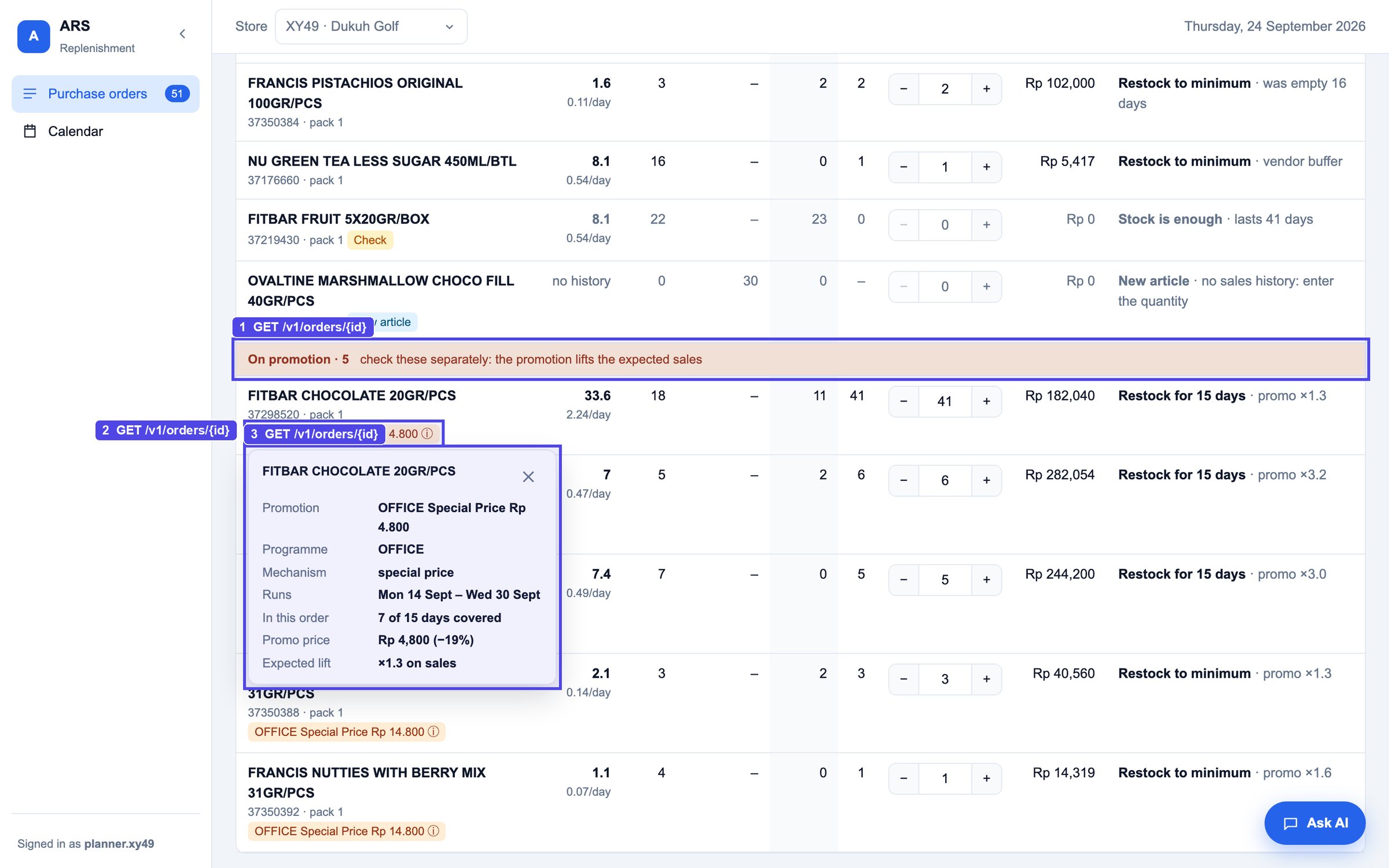
| # | Endpoint · what this area shows |
|---|---|
| 1 | GET /v1/orders/{id} Lines with promo set: a separate section under the regular articles |
| 2 | GET /v1/orders/{id} promo: short label; click opens the details |
| 3 | GET /v1/orders/{id} promo_detail: name, program, mechanism, start – end, days_in_cover, promo_price, discount_pct, uplift |
S3bPurchase order below the minimum order Low Open the screen ↗
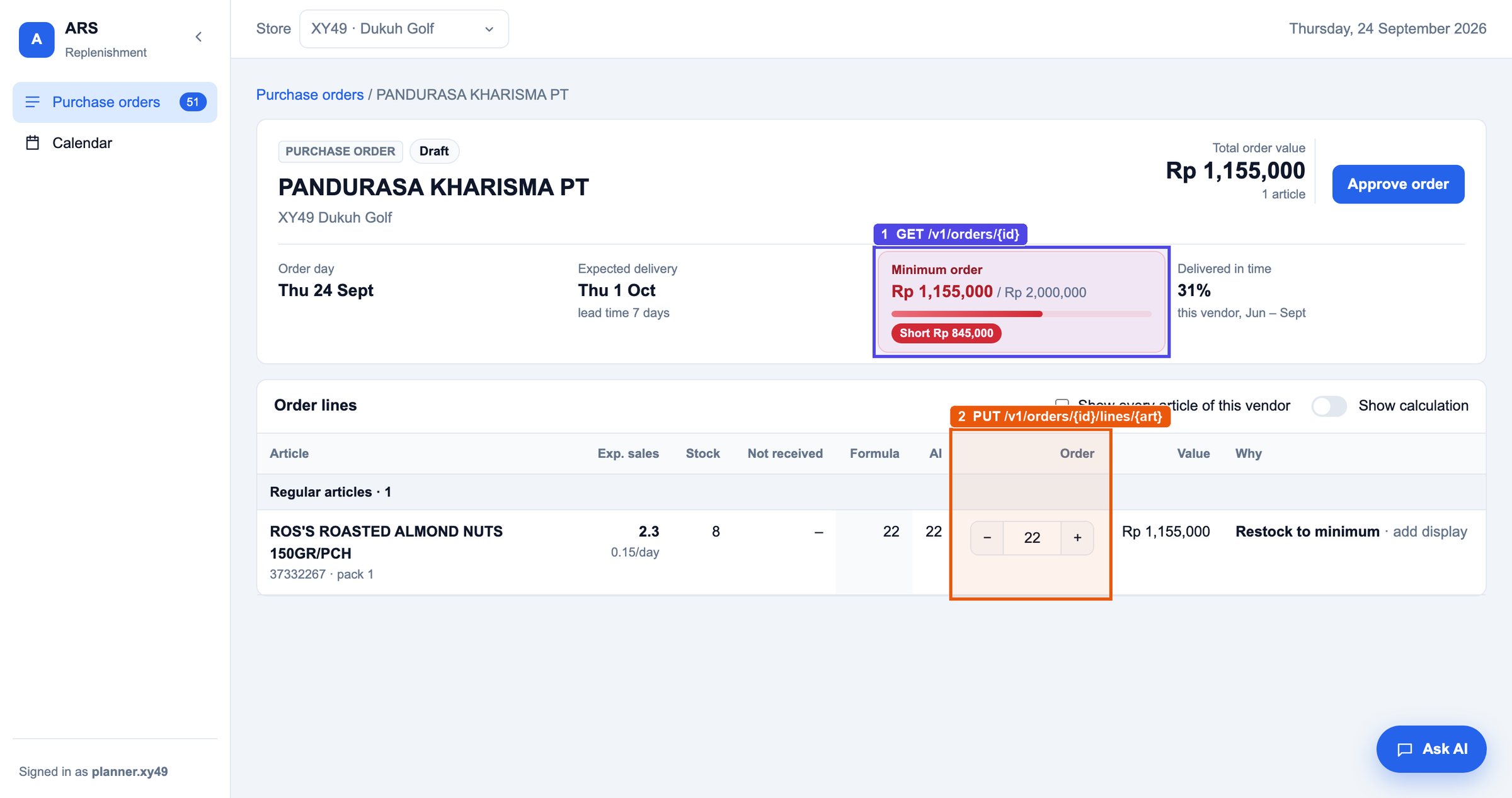
When the PO total is below the vendor's minimum order (MOQ), the Minimum order box turns red with where the PO stands (current of minimum, shortfall). The planner decides, whatever the AI or the Formula suggests: top up the quantities, or skip today and combine with the next order. The API also returns the decision options and the vendor's note from the order sheet, for screens that want to show them.
| # | Endpoint · what this area shows |
|---|---|
| 1 | GET /v1/orders/{id} header.moq: current of value (or cartons), shortfall; shown red when ok is false. The planner decides: top up, or skip today |
| 2 | PUT /v1/orders/{id}/lines/{art} Top up: the planner raises quantities; the header and moq come back with every change |
S3cOrdering in full packs (uom) Low Open the screen ↗
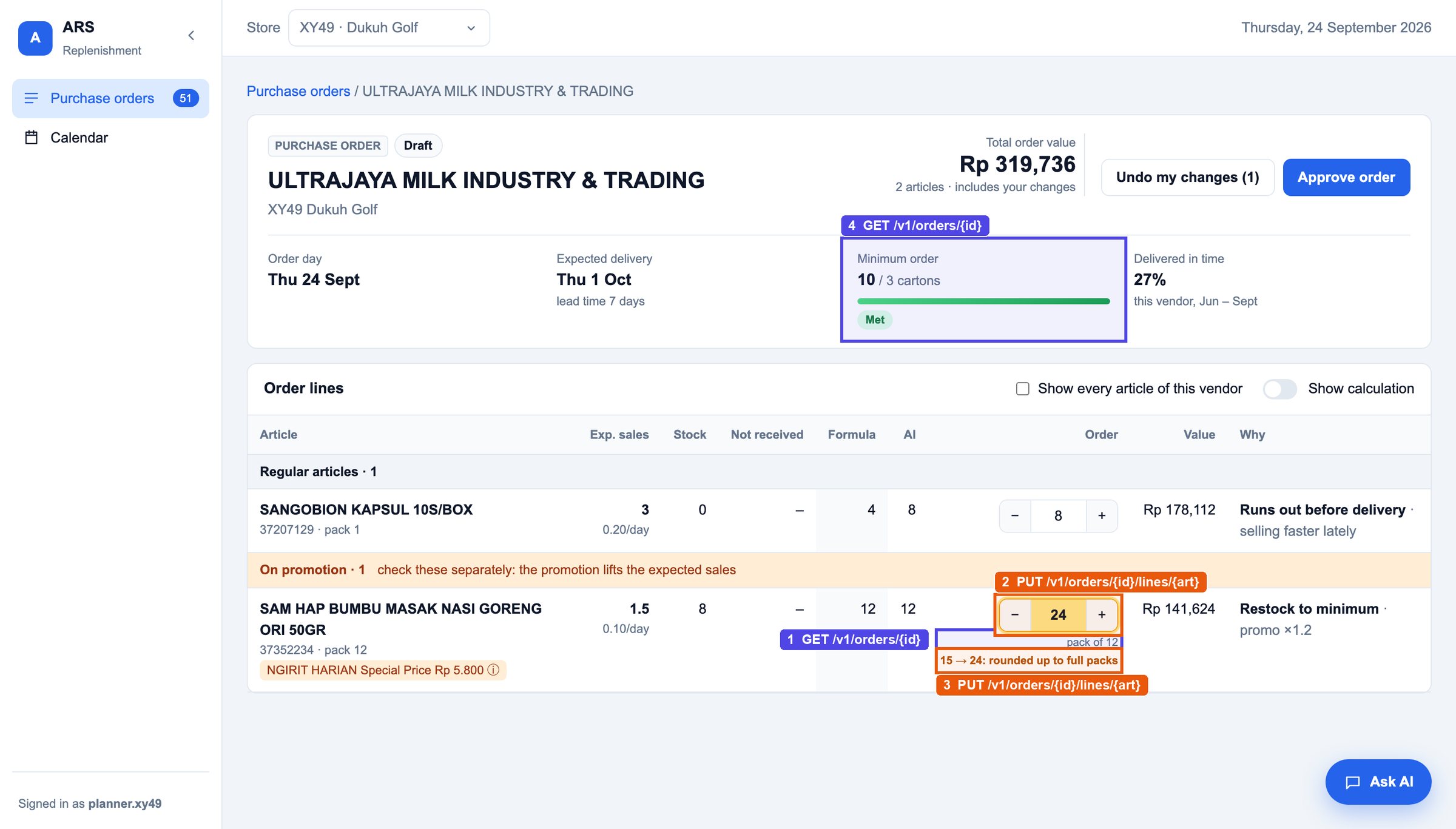
Every quantity is a multiple of the article's pack size (uom). − / + step by the pack (12, 24, 36). When the planner types a number that is not a multiple (15 with a pack of 12), the API rounds it up (24) and returns rounded_from = 15, so the screen can highlight the line. The screen can also warn while the planner is typing, before saving.
| # | Endpoint · what this area shows |
|---|---|
| 1 | GET /v1/orders/{id} pack_size (uom): the order unit; − / + step by it (12, 24, 36 …) |
| 2 | PUT /v1/orders/{id}/lines/{art} Typed 15 → saved as 24: the response has rounded_from = 15; highlight the line |
| 3 | PUT /v1/orders/{id}/lines/{art} rounded_from shown next to the quantity; while typing, the screen can warn before saving |
| 4 | GET /v1/orders/{id} Minimum order in cartons (moq.cartons): counted in packs, not pieces |
S4Purchase order detail: calculation view Low Open the screen ↗
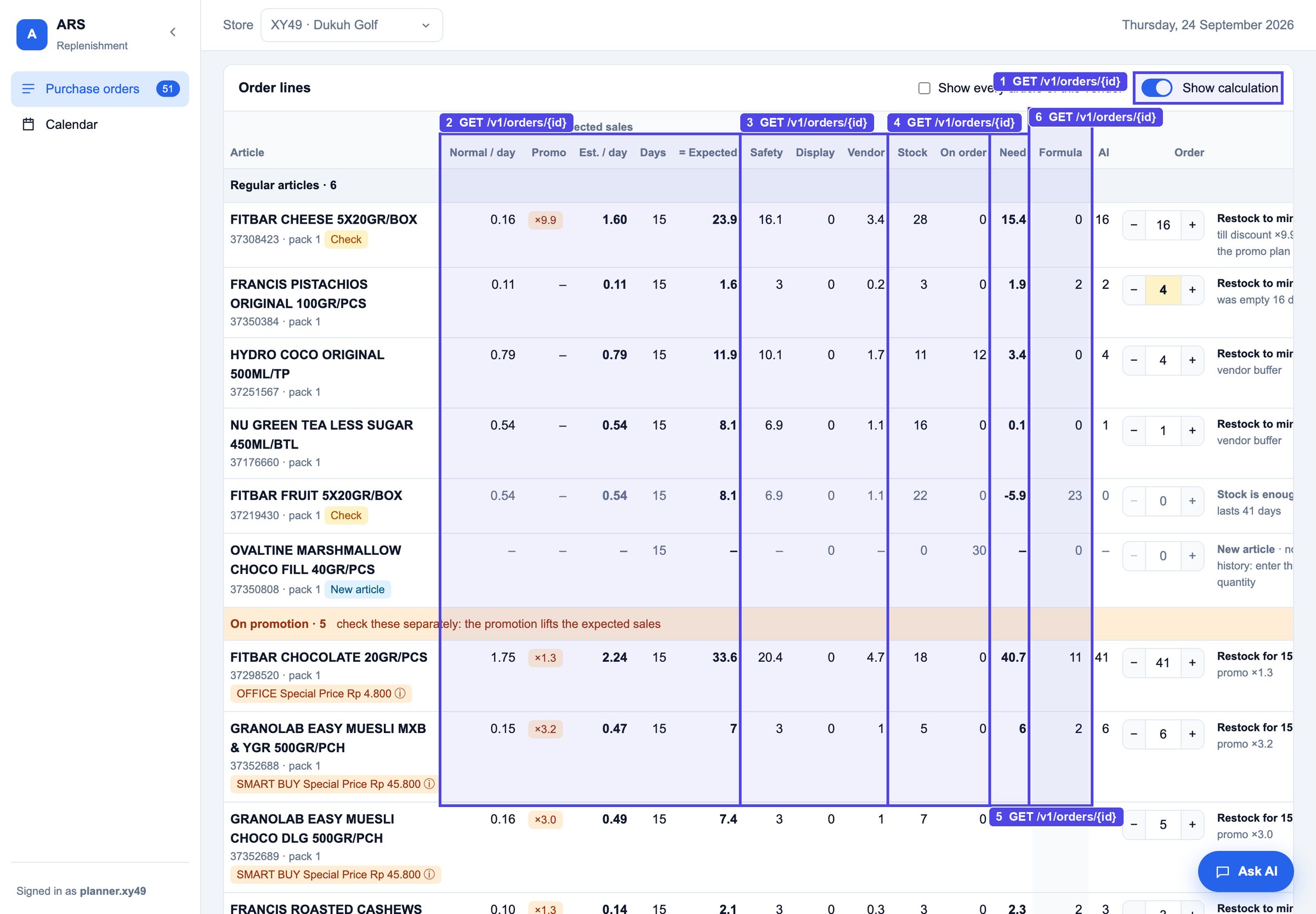
The S3 grid with a 'Show calculation' switch, grouped the way the quantity is built: expected sales (normal × promotion × days) + extra stock − what is already there = need, with the client's Formula next to it. The reason stays in the last column. No extra call: everything is in the GET /v1/orders/{id} response.
| # | Endpoint · what this area shows |
|---|---|
| 1 | GET /v1/orders/{id} Show calculation: a switch in the screen, no extra call |
| 2 | GET /v1/orders/{id} Expected sales: normal_per_day × promo_factor = sales_per_day, × cover_days = expected_sales |
| 3 | GET /v1/orders/{id} + Extra stock: safety_stock, display_stock, vendor_extra |
| 4 | GET /v1/orders/{id} − Already have: stock, on_order |
| 5 | GET /v1/orders/{id} = need, rounded up to the pack → ai_qty |
| 6 | GET /v1/orders/{id} manual (Formula): avg_per_day, min_stock, qty |
S5Article panel High (Medium without the chart) Open the screen ↗
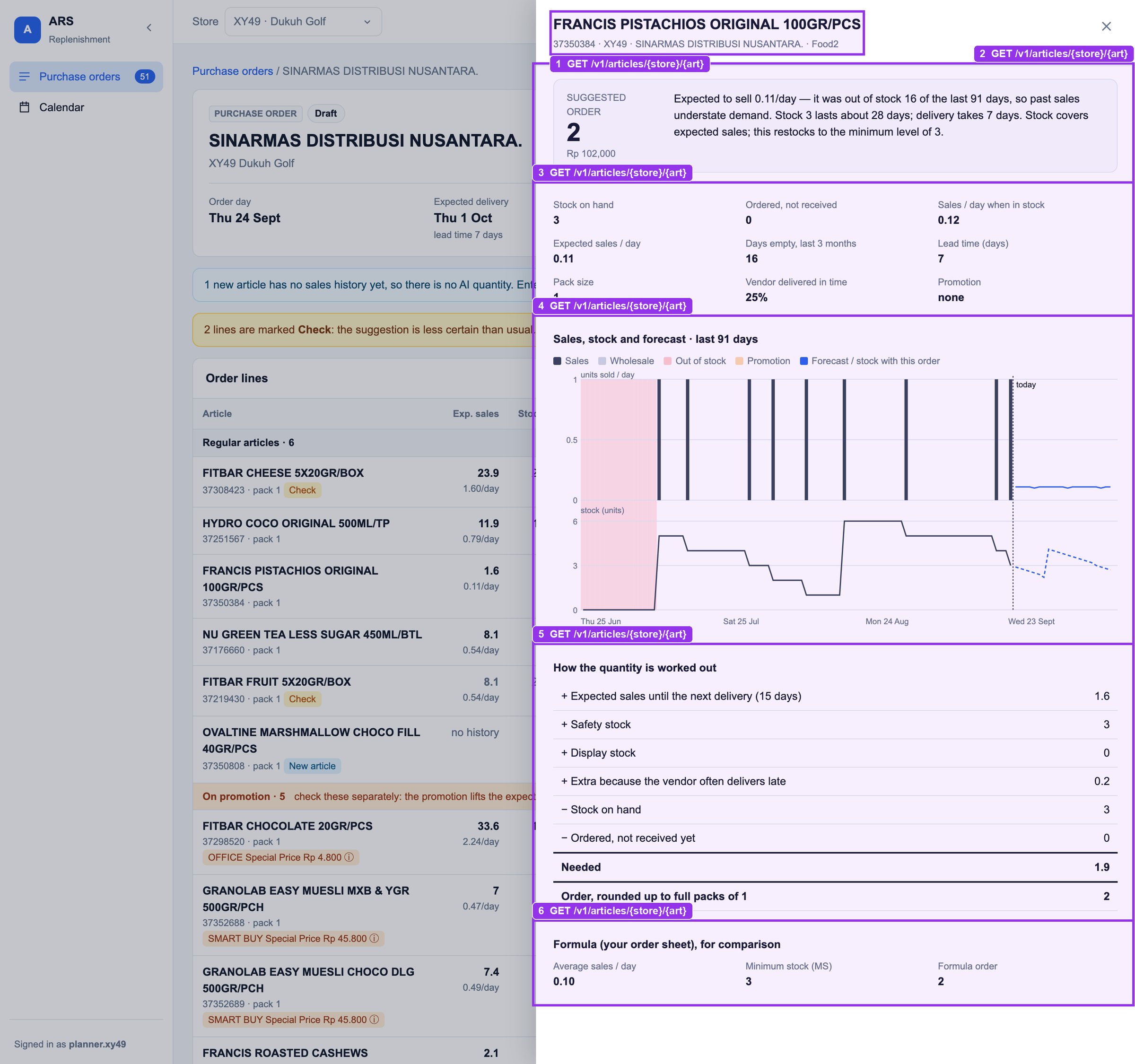
Opens from an article name in S3. The reason in plain words, key facts, 91 days of daily sales and stock with the forecast, and the step-by-step build-up of the quantity. If the chart is costly in Mendix, start with reason + facts + build-up table.
| # | Endpoint · what this area shows |
|---|---|
| 1 | GET /v1/articles/{store}/{art} description, article, store, vendor, department |
| 2 | GET /v1/articles/{store}/{art} suggestion: qty, value, reason |
| 3 | GET /v1/articles/{store}/{art} facts[]: label and value |
| 4 | GET /v1/articles/{store}/{art} history (91 days: sales, wholesale, stock, out_of_stock, promo) and forecast (demand, stock_with_order) |
| 5 | GET /v1/articles/{store}/{art} buildup[]: label, value, sign (+ adds, − subtracts, = result) |
| 6 | GET /v1/articles/{store}/{art} manual: the sheet formula for comparison |
S8Calendar Medium Open the screen ↗
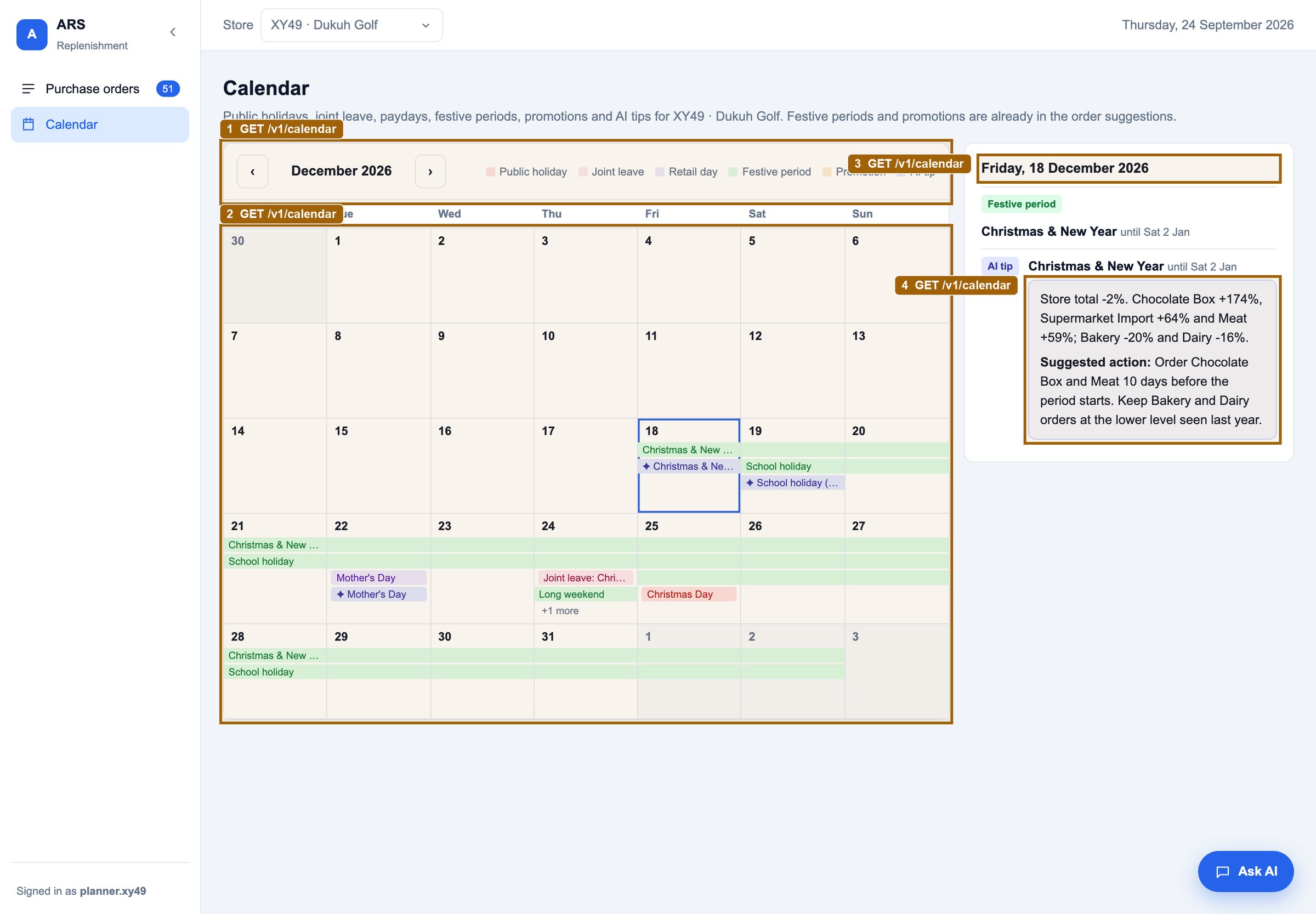
Month view of what comes from outside the order rules: public holidays, joint leave, paydays and other retail days, festive periods, promotions and AI tips. Purchase-order days are not shown here (they are on S1). Selecting a day lists its items; AI tips are information only (what happened last year and a suggested action). The Mendix calendar widget can show these items directly (start, end, type).
| # | Endpoint · what this area shows |
|---|---|
| 1 | GET /v1/calendar month parameter (YYYY-MM) and the type legend |
| 2 | GET /v1/calendar items[] that touch the month: type, title, start, end. Single-day items are chips, periods and promotions are bars |
| 3 | GET /v1/calendar Selected day: every item with start ≤ day ≤ end, with detail; ai_tip adds action and status |
| 4 | GET /v1/calendar ai_tip: what happened last year (detail) and the suggested action |
S11ARS Assistant Medium Open the screen ↗
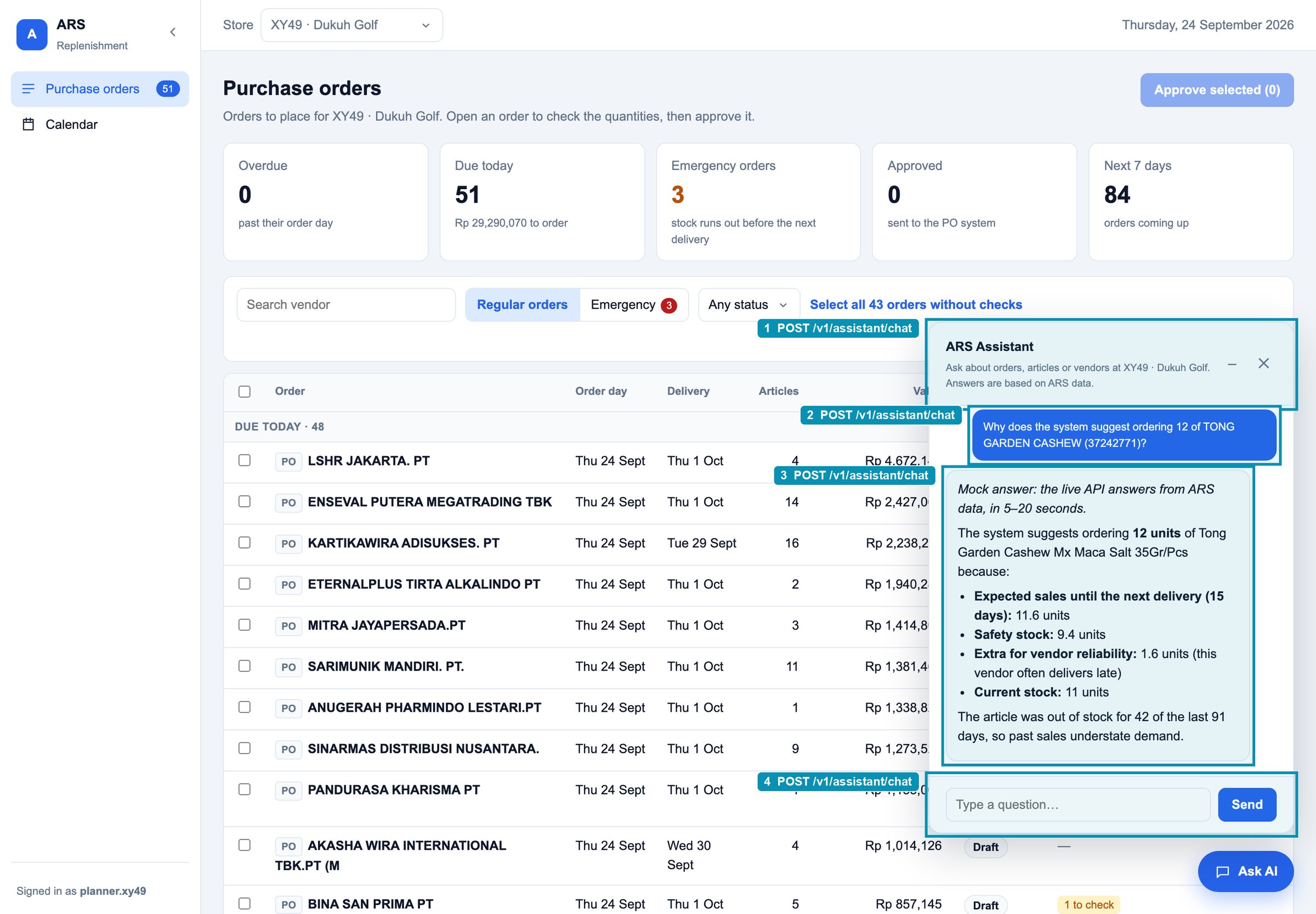
Floating 'Ask AI' button at the bottom right of every screen; it opens the chat panel. Send the question with the store and day in view; show the Markdown answer. The live API takes 5–20 s, so show a loading state. In the mock the answer is a fixed example.
| # | Endpoint · what this area shows |
|---|---|
| 1 | POST /v1/assistant/chat Floating window: the page stays usable behind it; – minimises, ✕ closes. Store and date go with every question |
| 2 | POST /v1/assistant/chat question (+ history of this chat) |
| 3 | POST /v1/assistant/chat answer (Markdown) and sources |
| 4 | POST /v1/assistant/chat Question box |